Using Filtering
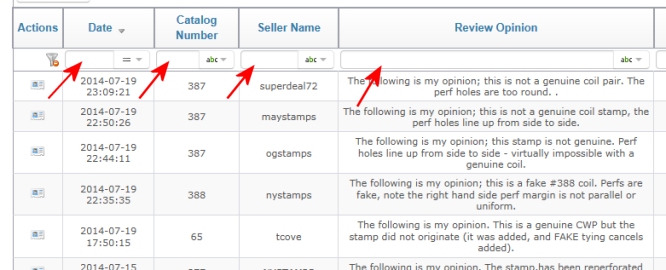
1. Filters are available above each displayed column; you can use a
single filter or enter multiple filters across multiple columns
2.To demonstrate we will filter on the catalog number column to narrow
the results for any Review which contains the
catalog number "1".
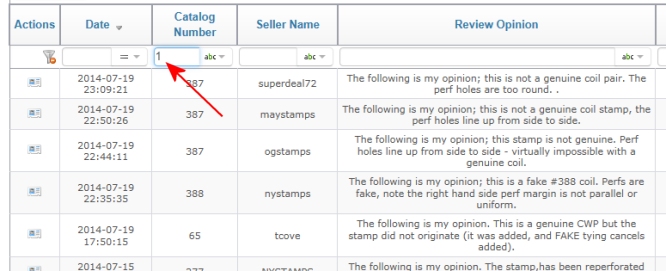
Simply click in the filter box and type the number 1 as shown at right.
Tip; The list will 'auto-filter' every 3 seconds; so you only need to type the '1' and wait a few seconds for the results to be displayed.
Simply click in the filter box and type the number 1 as shown at right.
Tip; The list will 'auto-filter' every 3 seconds; so you only need to type the '1' and wait a few seconds for the results to be displayed.
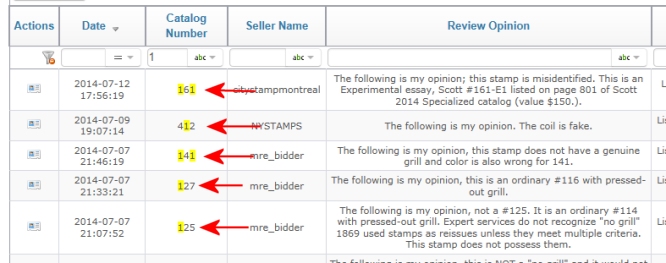
3. The filtered list will highlight in yellow the number '1' as shown at
right.
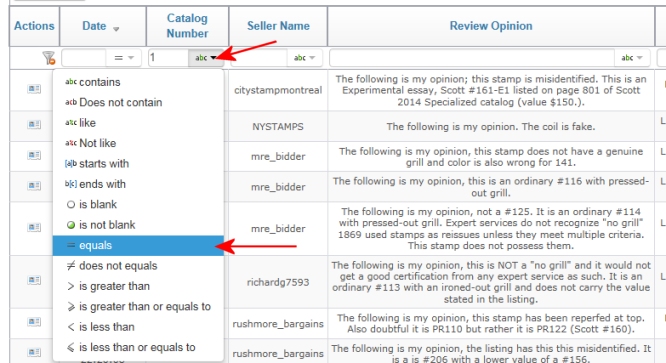
4.The default filter criteria is contains but
you can change this to meet your needs. For example you can change this
to equals as shown at right.
This will then change the filter to display only Reviews for any stamp with a catalog number that equals '1'.
This will then change the filter to display only Reviews for any stamp with a catalog number that equals '1'.
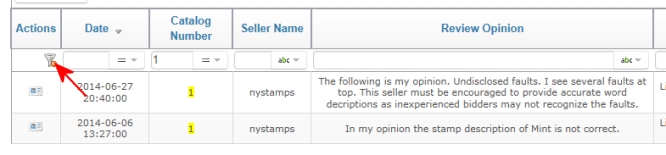
5.To clear the filter simply click on the filter Action icon as shown at right.